
Which long shifts need a meal-break review?
Staff reads the time clock and sorts every shift over six hours by its recorded meal break: on time, late, short or not recorded. Any count opens to its store, its date, the shift, and each time on and off the clock.
How you work through it.
Start with all stores, for a week or a fiscal period.
Choose any of the last 13 weeks or 12 fiscal periods, or the one in progress, shown through its last closed day. Every shift over six hours reads on time, late, short or no recorded break, and the percentage counts the last three. Shifts of five to six hours and shifts it cannot assess are counted apart, outside the percentage. Shifts over ten hours are also checked for a second break.
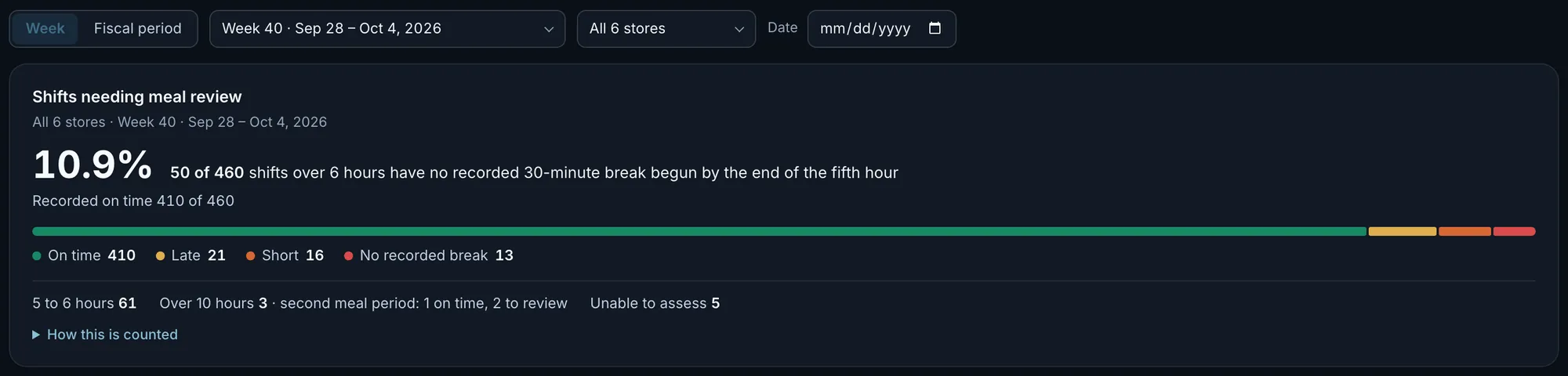
50 of 460 shifts over six hours need review: 21 late, 16 short and 13 with no recorded break.Actual OpsIntel screen · synthetic demo data · tap to open full size See which store they are in.
One row for each store, with its count and a bar of the four groups. A store whose punch records cannot be read is named and left out, not counted as zero.
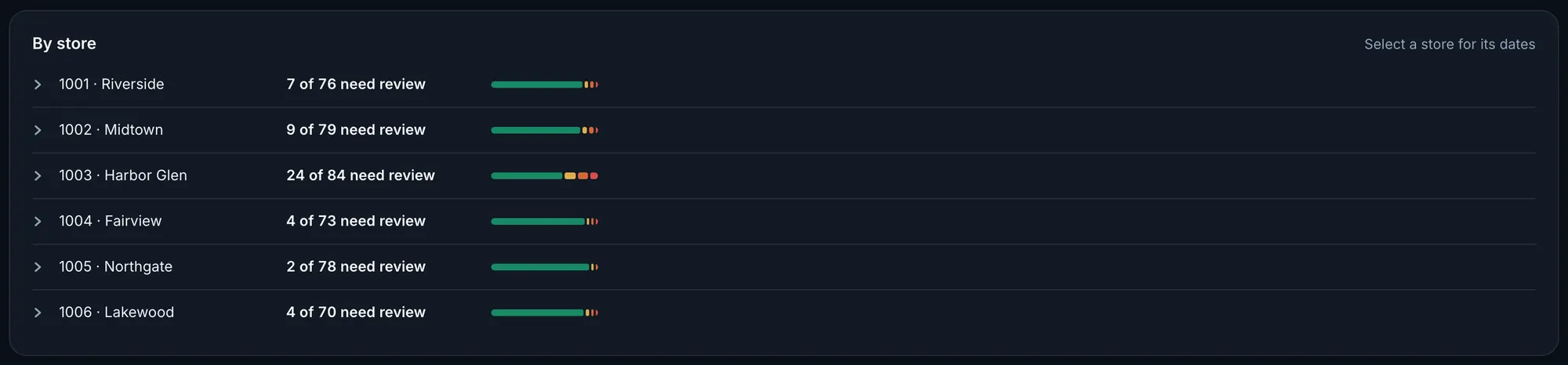
Harbor Glen has 24 of the 50.Actual OpsIntel screen · synthetic demo data · tap to open full size Open the store, date by date.
The same figures for one store, then a row for each date with its own count and any shifts that could not be assessed. Down to here the screen shows counts only. Names first appear when you open a date.
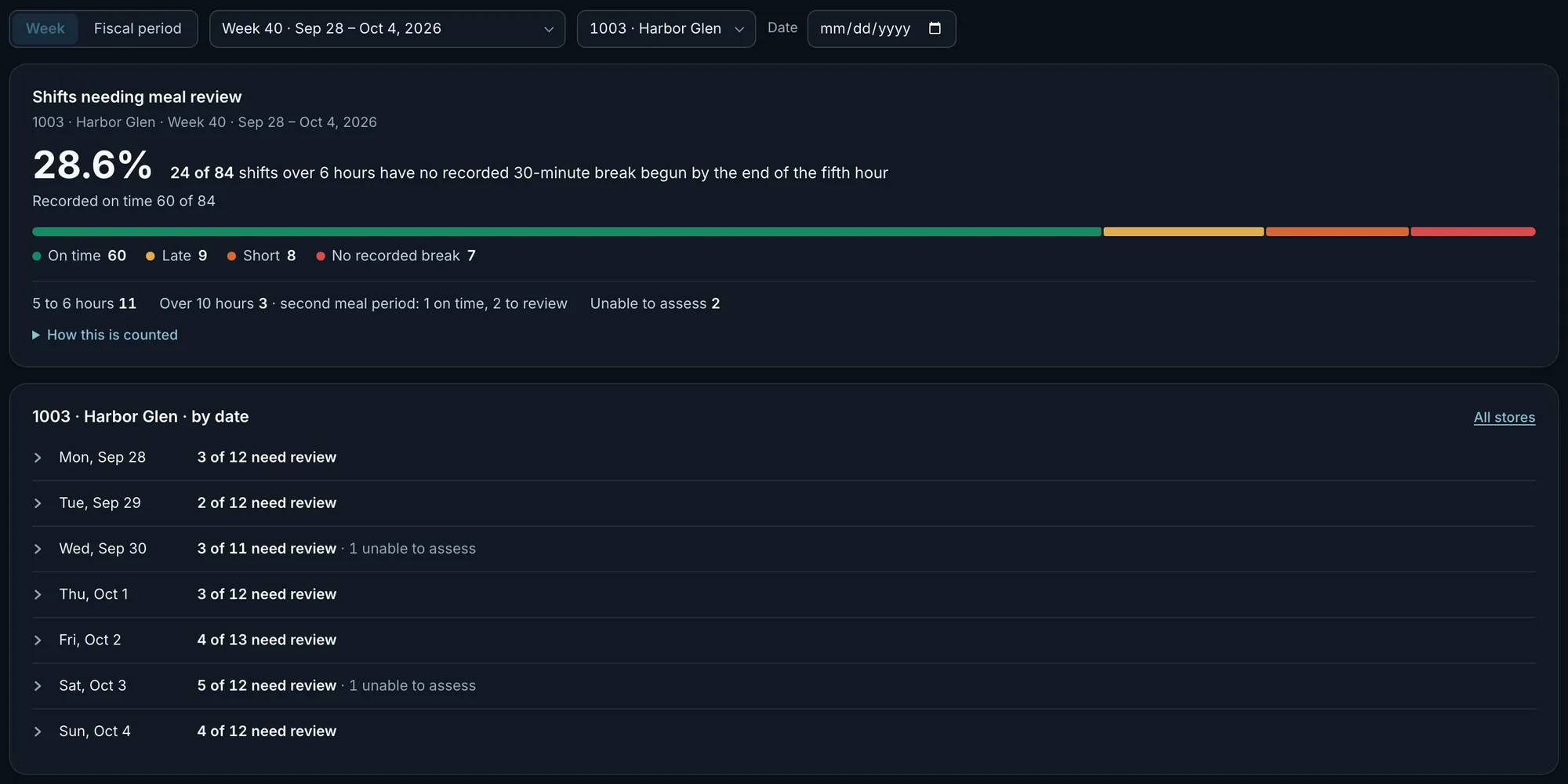
On Saturday, 5 of 12 need review.Actual OpsIntel screen · synthetic demo data · tap to open full size Open a date: every shift that day.
Each person’s shift in clock-in order: clock in and out, time worked, that person’s regular pay and tips for the day, and the recorded break with whether it reads on time, late or short. You can also type a closed date from the weeks or periods offered, and it opens in place for one store or for every store at once.
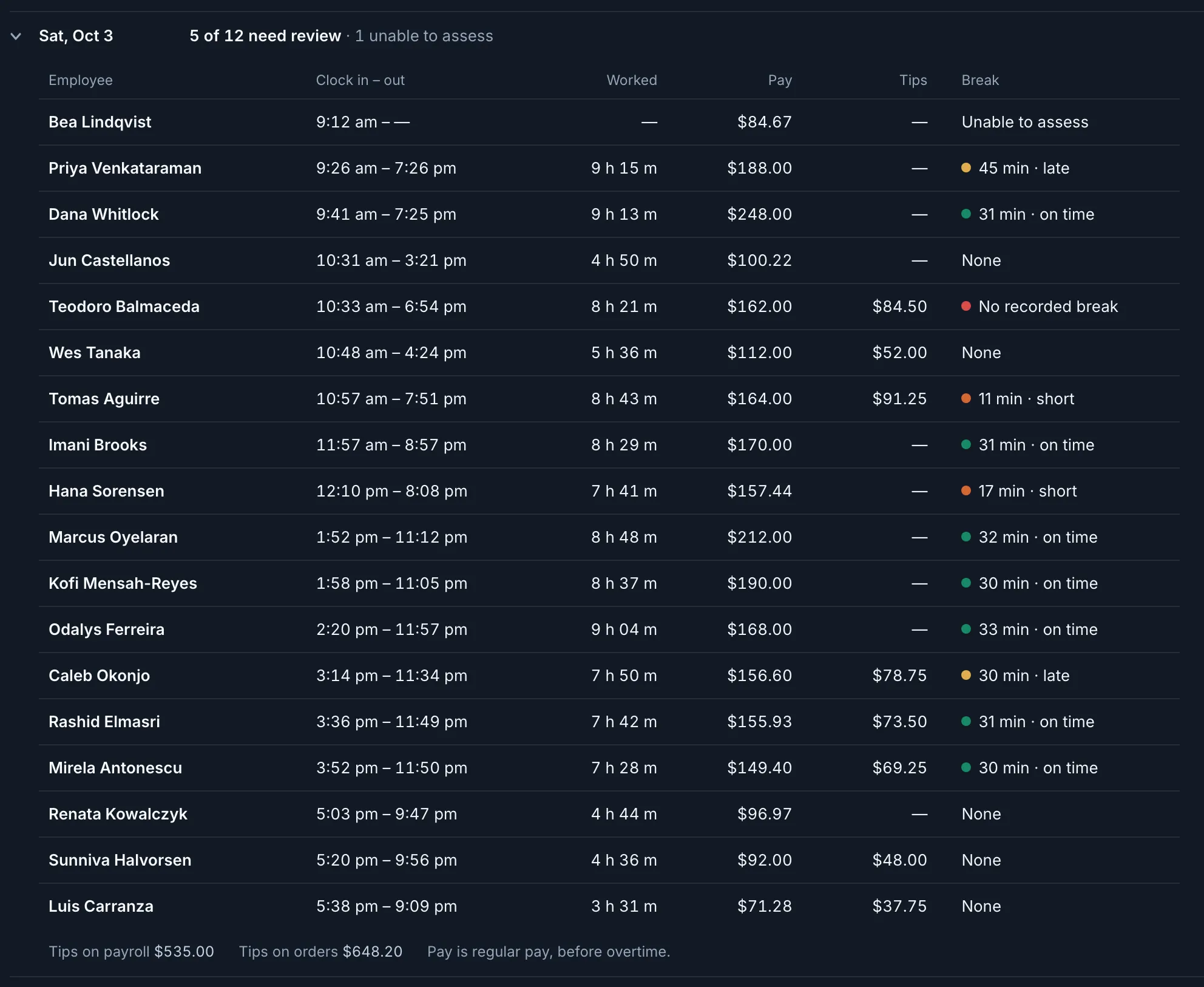
The date ends with tips paid through payroll, $535.00, beside tips left on orders, $648.20.Actual OpsIntel screen · synthetic demo data · tap to open full size Open a shift: each punch and each gap.
Every stretch on the clock and every gap, with when it began, how long it lasted and how much had been worked by then. Breaks are timed in hours worked, to the second, and a line marks the clock time at which the fifth hour of work ended. A clock-out and straight back in is shown as a re-clock, not a break, and a closing shift that runs past midnight stays one shift.
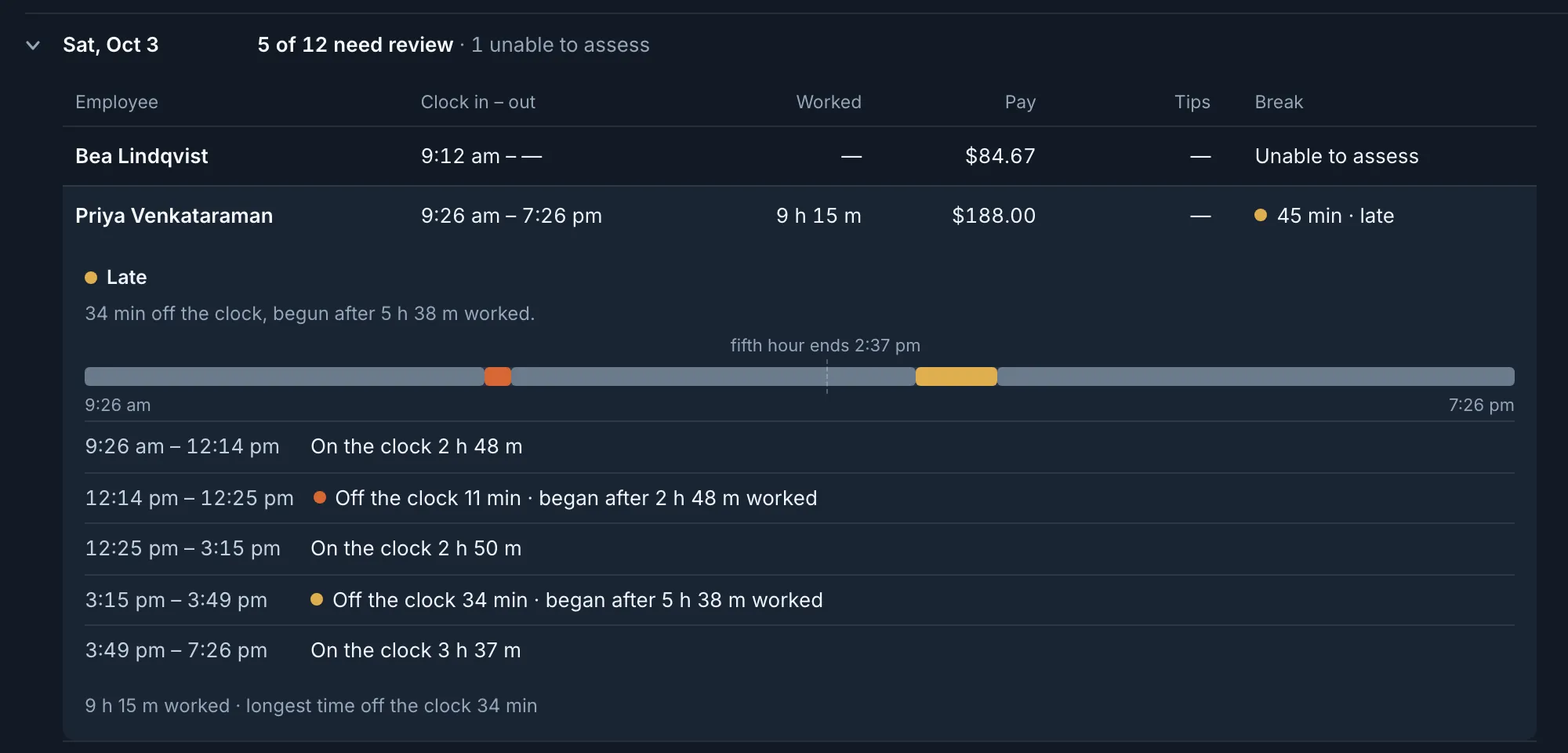
An 11-minute gap put the end of the fifth hour of work at 2:37 pm. The 34-minute break began after 5 h 38 m worked, so it reads late.Actual OpsIntel screen · synthetic demo data · tap to open full size A shift it cannot assess says so and gives the reason.
The row reads Unable to assess. Open the shift for the reason, such as a missing punch, overlapping punches, paid time that does not match the clock, the night the clocks change, or two shifts in one day that only together cross a threshold. These shifts are kept out of the percentage.
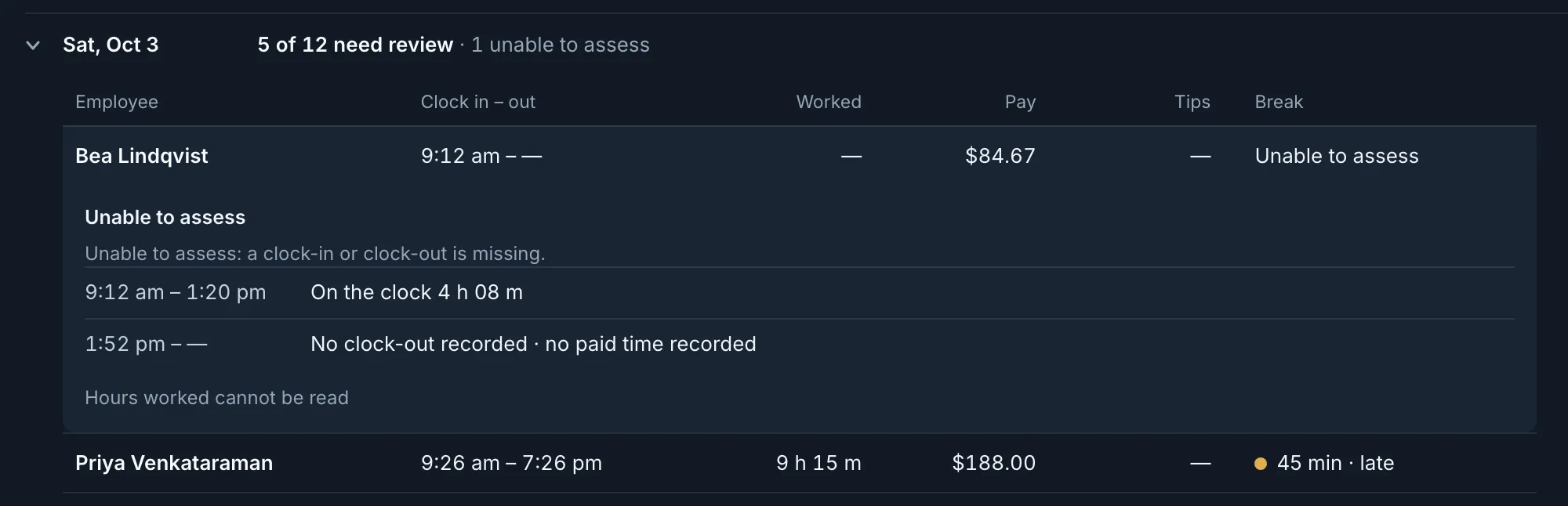
No clock-out was recorded, so the hours worked cannot be read.Actual OpsIntel screen · synthetic demo data · tap to open full size Read how it is counted.
The screen lists its own rules: what counts as a shift, what needs review, and which shifts are kept apart. It prints its punch hours beside labor hours for the same stores and days, the figure Labor & Scheduling shows as worked hours, and checks them store by store. A store where the two differ by more than half an hour or half a percent, whichever is larger, is named with both figures.
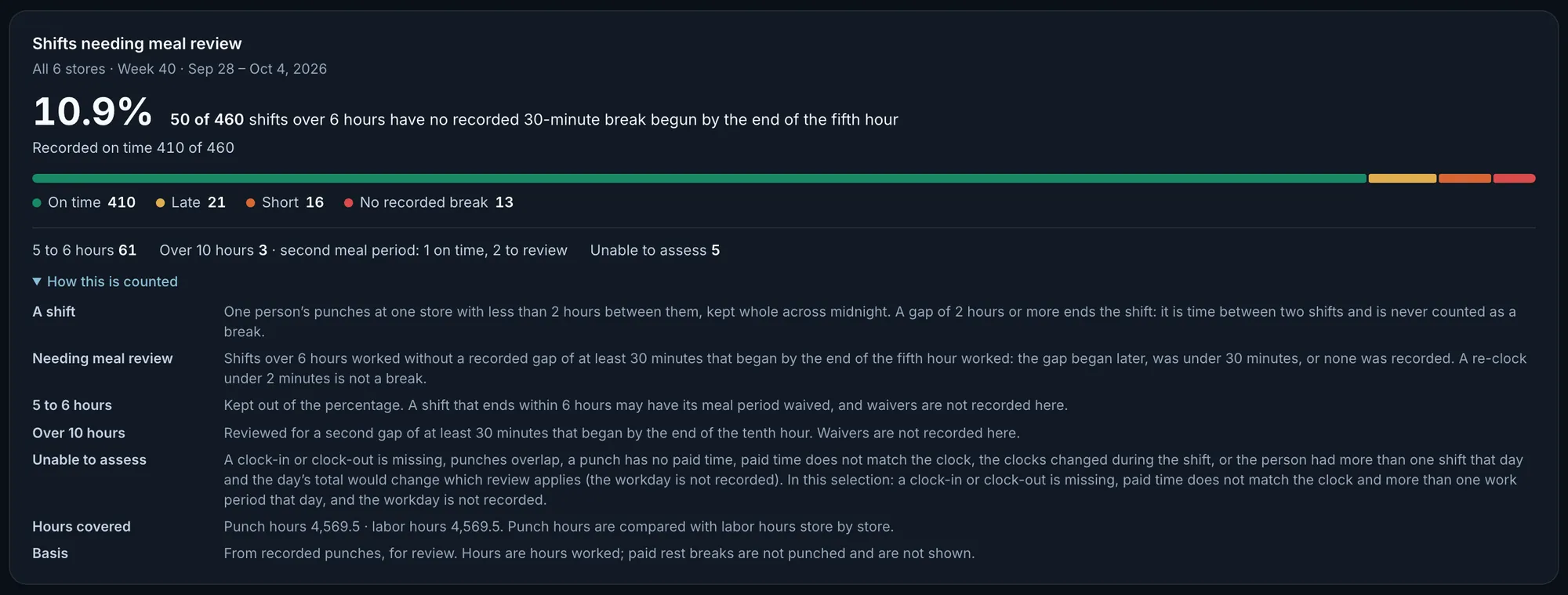
For this week, punch hours and labor hours both read 4,569.5.Actual OpsIntel screen · synthetic demo data · tap to open full size
Worth knowing first.
- It shows what the time clock recorded, for a manager to review. It cannot say whether a break was offered, declined or waived, and it is not a legal finding.
- The rules are fixed: over six hours worked, a recorded gap of at least 30 minutes begun by the end of the fifth hour, and a second one for shifts over ten hours. They cannot be changed to another state’s rule.
- Paid rest breaks are not punched, so they are not shown or assessed. Waivers are not recorded.
- The review covers up to 24 stores for one sign-in.
- There is no custom date range, no list of only the shifts needing review, no export and no sign-off.
- Pay and tips are per person for the day, and pay is regular pay before overtime. Overtime is on Labor & Scheduling.
- Anyone signed in on a plan with Staff can open a date and see names, pay and tips.
- Staff is part of the Premium plan.
See it on the live product.
A demo is thirty minutes.