
Labor
Did we staff to the sales we actually had?
Labor & Scheduling finds labor waste and overtime hours. Our system sets scheduled hours against worked hours, and the sales plan against the sales that came in, for every store and every day. Timely deliveries and guest experience are matched to the shifts that were on, and any day opens by part of the day.
How it works
How you work through it.
Find the store that ran over on hours.
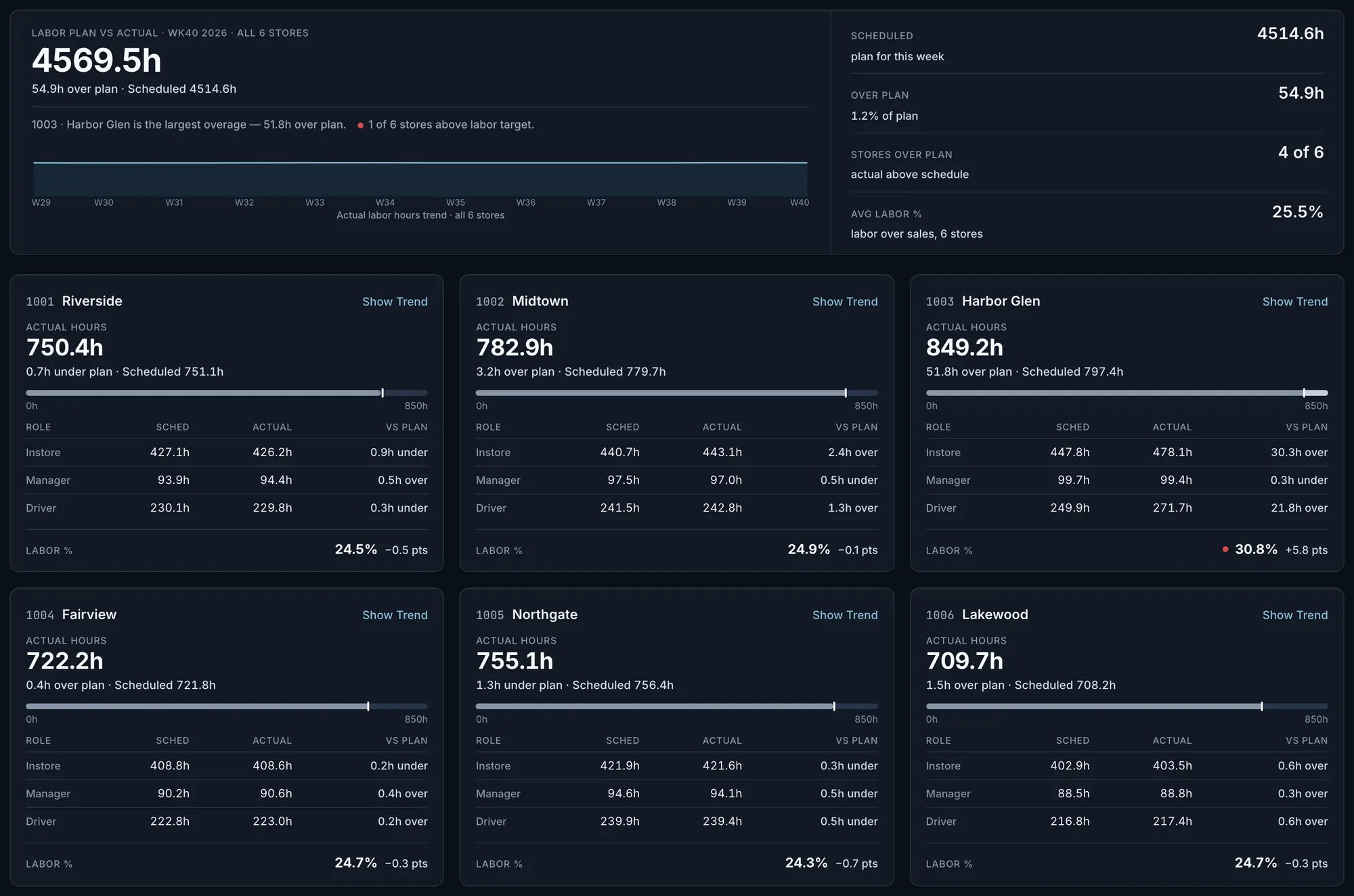
One week’s worked hours against scheduled for every store, split into in-store, manager and driver hours, with the largest overage named at the top. Each store’s labor percent is shown against the labor target you set, and a store with no target says so.
Fig. 1All stores together worked 54.9 hours over their scheduled hours. Harbor Glen alone was 51.8 over, with labor at 30.8%, 5.8 points above its target.Actual OpsIntel screen · synthetic demo data Open that store day by day.
Stores are listed furthest from the sales plan first. Each opens to one row a day: sales against the sales plan on record, worked against scheduled hours, overtime hours, and how many timed deliveries took 18 minutes or more to leave the store. Select one store and the screen lists its days to review and what moved on each: sales against the plan or worked hours against the schedule, with the figure.
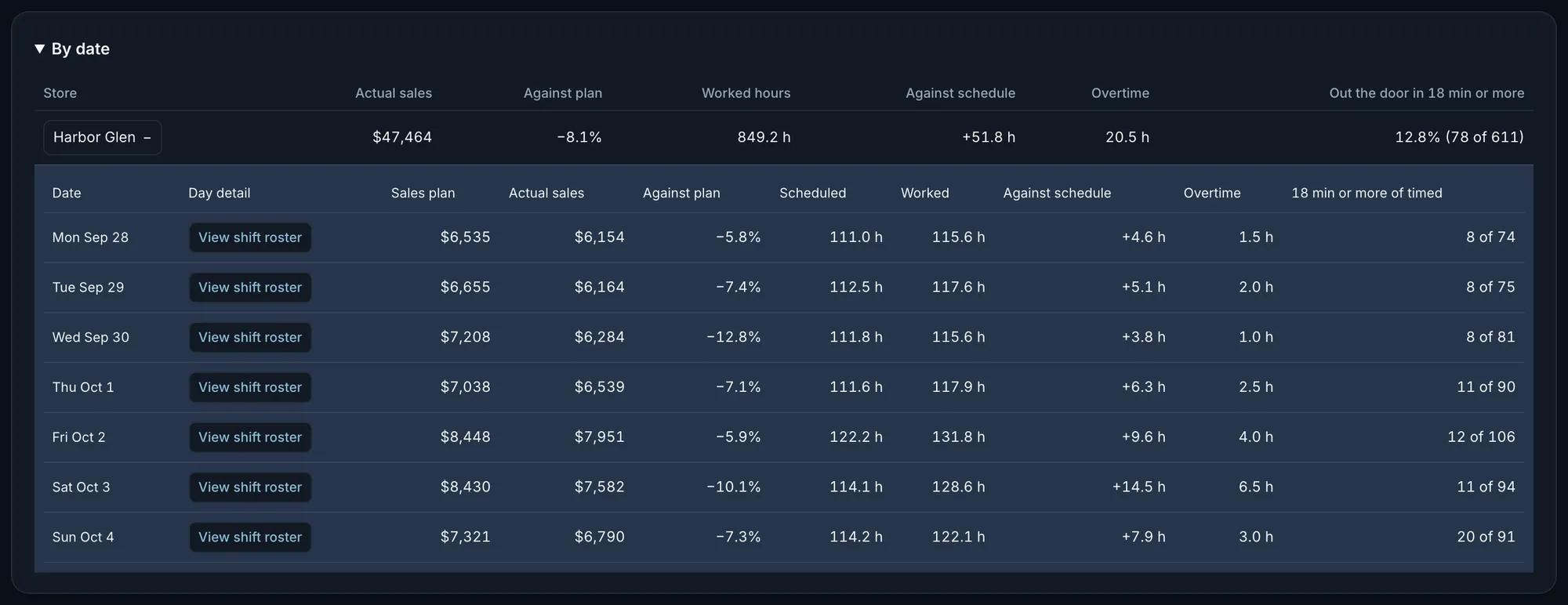
Fig. 2Every day came in under its sales plan and over its scheduled hours. Saturday was 14.5 hours over, with 6.5 hours of overtime.Actual OpsIntel screen · synthetic demo data Read delivery timing next to the hours.
Any day opens by part of the day: orders, timed deliveries, how many took 18 minutes or more to leave and, with Staff, how many people were clocked in during it. For the whole week or period, the share at 18 minutes or more is shown with its counts, and last year is set beside it only when both years timed every one of the same days. From here, Trends follows hours, sales and delivery timing across weeks and periods.
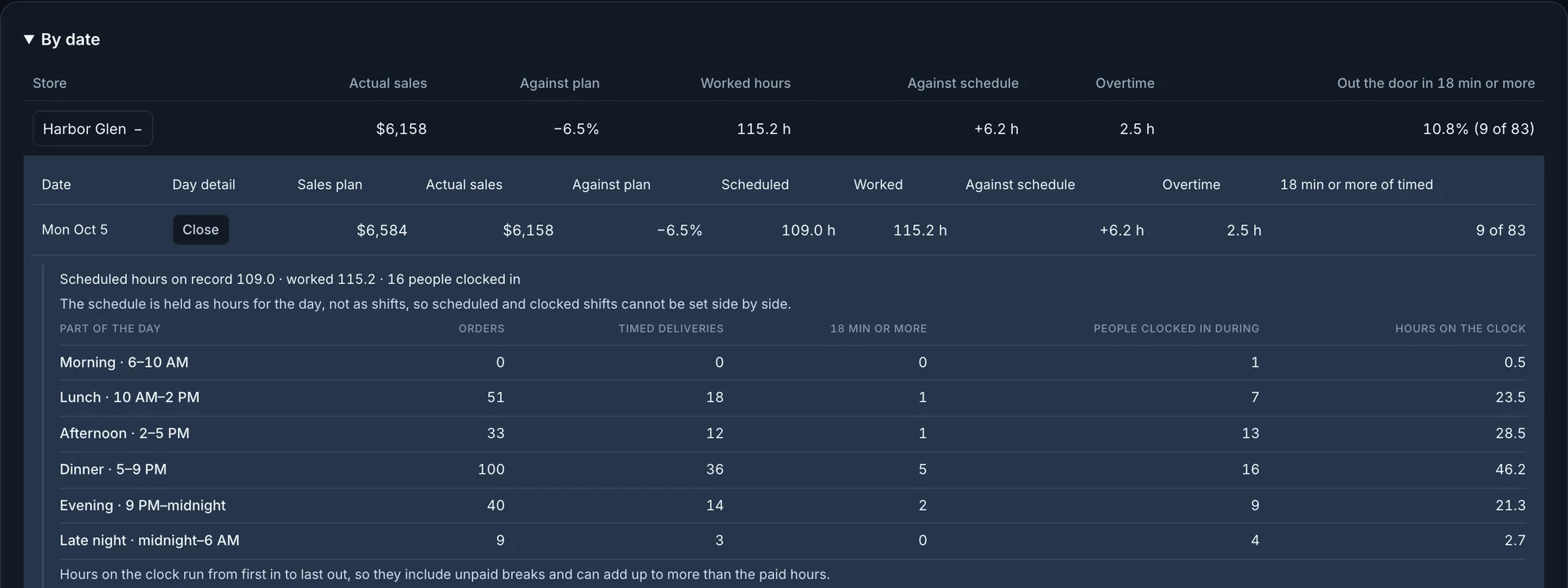
Fig. 3Monday, the first closed day of the new week: 109.0 hours scheduled, 115.2 worked. Dinner took 100 orders, with 16 people clocked in during it.Actual OpsIntel screen · synthetic demo data Open the full figures for the week or period.
Each store’s overtime pay and its share of pay sit beside its overtime hours, from time clock records. Labor hours per order and per open hour are laid out by day of the week for each store. A figure that is missing some of its days is marked. In a week each weekday is a single day; a fiscal period gives four or five.
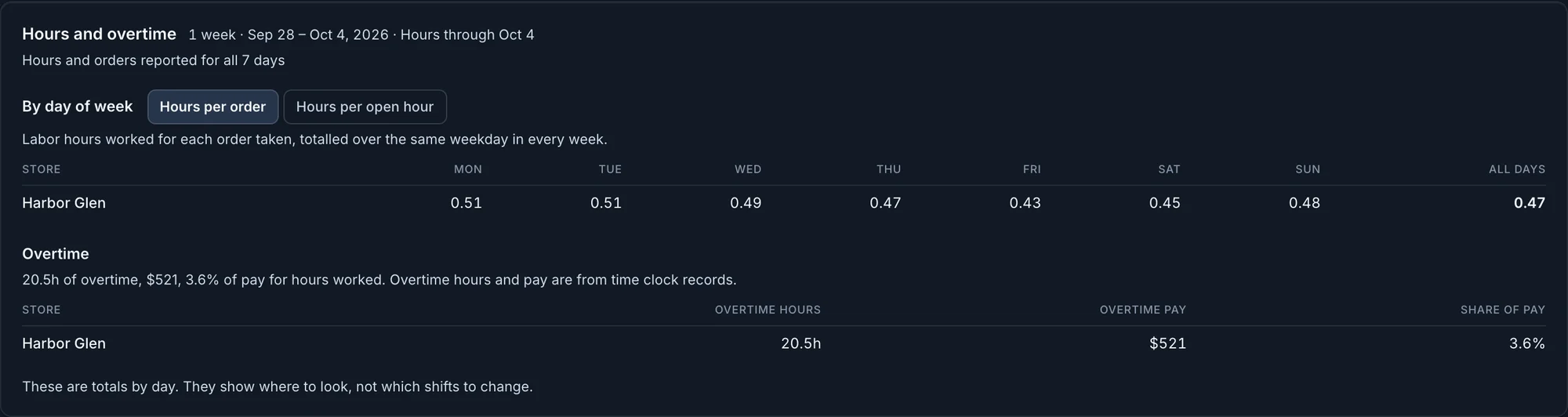
Fig. 4Harbor Glen worked 0.51 hours for each order on Monday and Tuesday and 0.43 on Friday. The screen says these totals show where to look, not which shifts to change.Actual OpsIntel screen · synthetic demo data Set the hours beside what the labor target pays for.
This last step is in Forecast, which is part of the Premium plan. Each store’s labor target is turned into hours and dollars at the sales forecast for this week and the next two, beside the hours the store recently worked. It is a budget at the target, not a schedule and not the hours a store needs, and the full Forecast screen says so above its table.
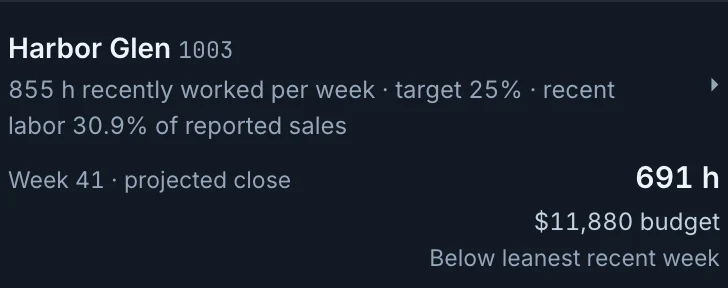
Fig. 5Harbor Glen recently worked 855 hours a week. At the Week 41 forecast its 25% target pays for 691 hours, an $11,880 budget, below its leanest recent week.Actual OpsIntel screen · synthetic demo data
What it covers
Labor at a glance.
Labor waste and overtime hours by store and day, with deliveries and guest experience matched to shifts.
In Labor
- Scheduled hours against worked hours, every store, every day
- The sales plan against the sales that came in
- Labor waste and overtime hours
- Deliveries and guest experience matched to the shifts that were on
- Any day by part of the day
- The hours beside what the labor target pays for
Before a demo
Worth knowing first.
- The schedule is held as hours for the day. The screen compares scheduled hours with worked hours, and cannot line up a scheduled shift against a clocked one.
- Scheduled hours and the sales plan are shown where they reach your franchise reporting system, as they read now. The source keeps no record of when either was written.
- A store-day with no sales plan, schedule or clock hours reads Unavailable and is left out of the comparison, not counted as zero. A note says how many were left out.
- Delivery timing is the time an order takes to leave the store, for deliveries the store timed. It is not time to the customer’s door, and marketplace and plan-ahead orders are not timed.
- A day is listed for review at 25% or more from the sales plan, or at least 2 hours and 10% from the schedule. A period view also lists days whose scheduled hours are unusual beside the plan. The screen does not say why, and it does not recommend hours.
- The people count for a part of the day is everyone clocked in at any point in it, not a headcount at one moment. The roster does not show who handled a delivery.
- Hours by role are loaded for recent weeks only, and an earlier week says so. A role with no hours in the source prints 0.0h.
- You choose from the last 13 weeks, the last 12 fiscal periods and the one in progress, which says how many of its days have closed. There is no custom date range, and the all-stores view covers up to 48 stores.
- Labor & Scheduling is on every plan. The people count and the shift roster need Staff. Staff and Trends are part of the Premium plan.
Related
Read it beside these.
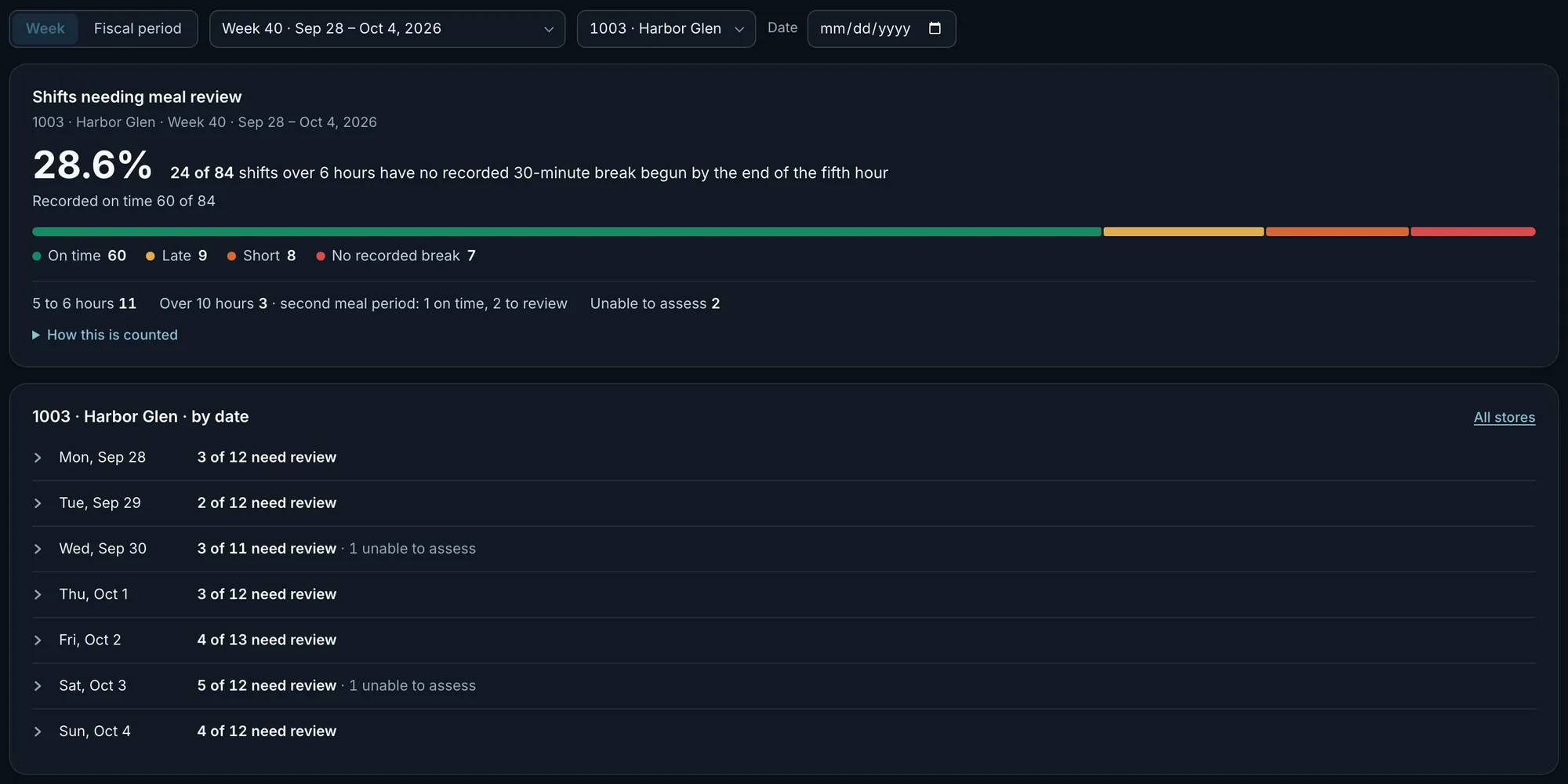
Actual OpsIntel screen · synthetic demo data Staff
Labor compliance from time clocks, and time-clock manipulation, from all stores down to one shift.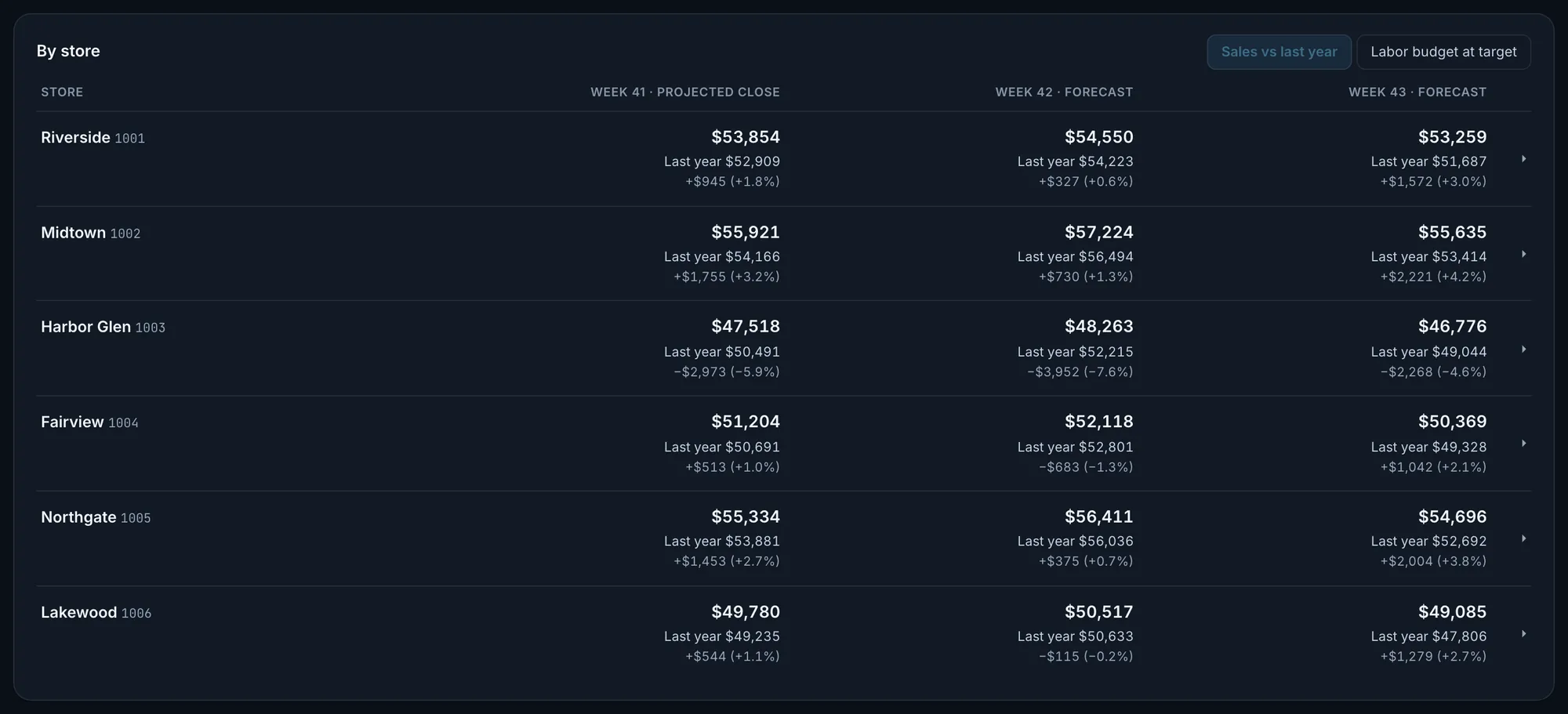
Actual OpsIntel screen · synthetic demo data Forecast
Forecasts for each store: this week and the next two, with a likely range measured on your own closed weeks.