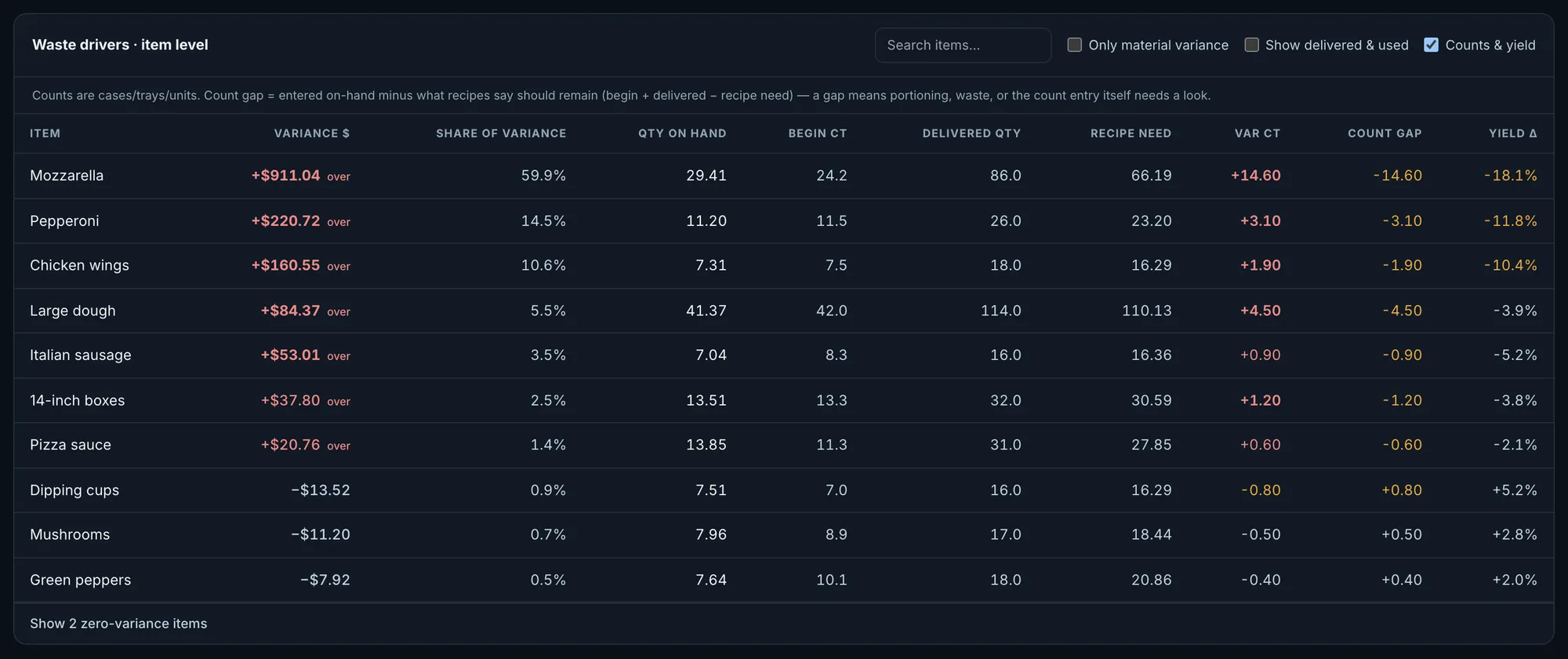
P&L
How did each store finish the period?
The P&L gives you the complete numbers. OpsIntel integrates with your accounting software, Xero and QuickBooks, so every cost and every weighting is included and each store gets the correct operating targets. Every store is listed for a fiscal period or year, and the store with the lowest EBITDA is the first row.
How it works
How you work through it.
Read the store table for a closed period.
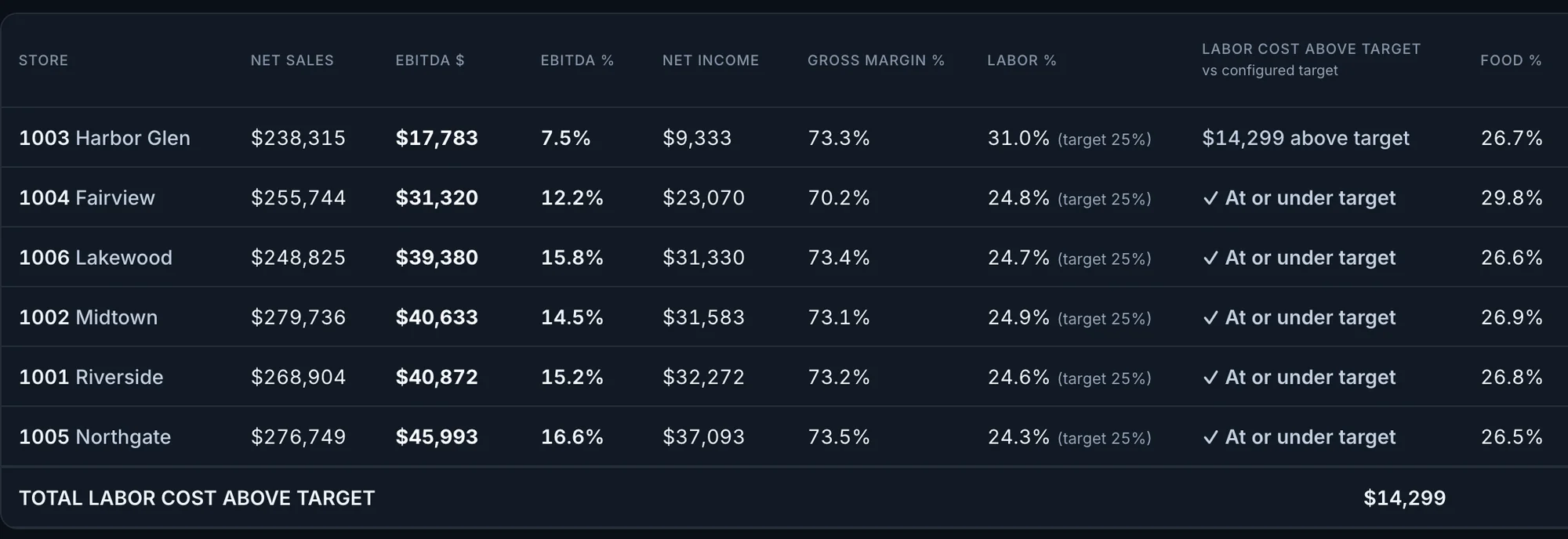
One row per store, lowest EBITDA first: net sales, EBITDA in dollars and percent, net income, gross margin, food cost, and P&L labor against the target you set for that store, with the dollars above target. Above the table: the group’s EBITDA, its percent of net sales, the change against the period before, and how many stores had positive EBITDA.
Fig. 1Harbor Glen finished at 7.5% EBITDA. Its P&L labor ran 31.0% against a 25% target, $14,299 above it.Actual OpsIntel screen · synthetic demo data Food cost: actual against target.
Food cost for each store: actual percent, target percent, the variance, the dollars, and the discounts given in the same period. The food target is the one your franchise reporting carries for the store.
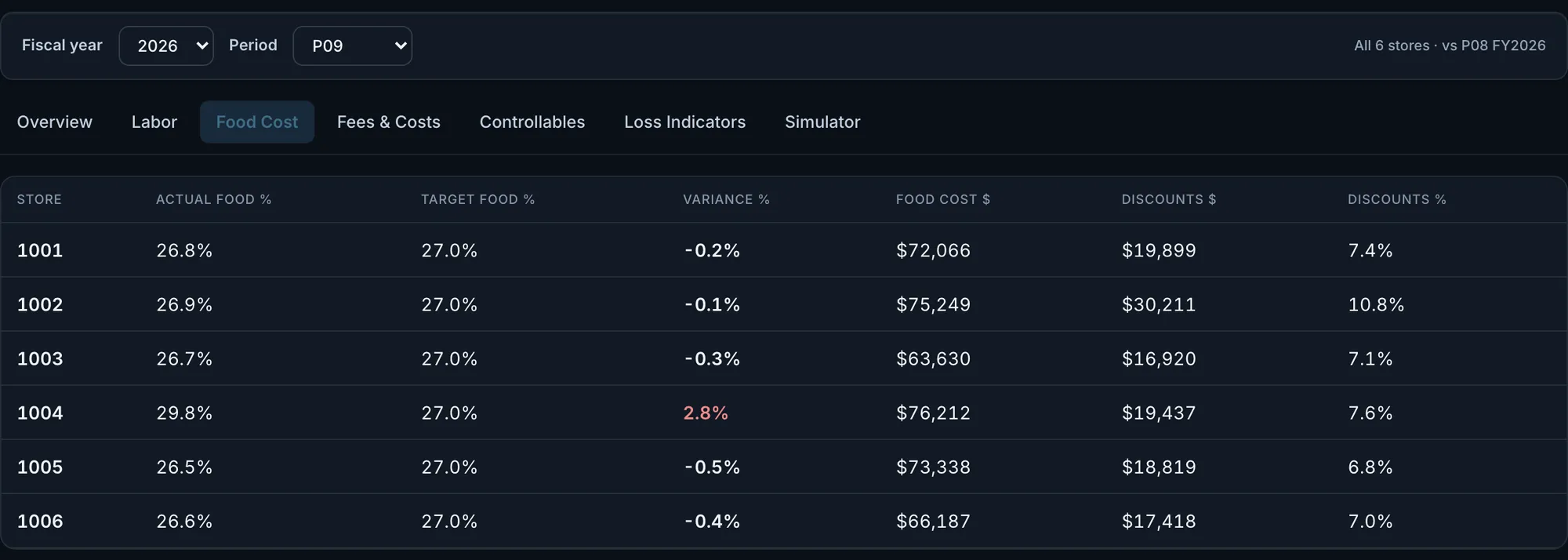
Fig. 2Store 1004 ran 29.8% against a 27.0% target, 2.8 points over.Actual OpsIntel screen · synthetic demo data Fees and costs.
Royalty, technology fee, advertising, rent and card fees sit on one row per store, and the total appears only when every line reported.
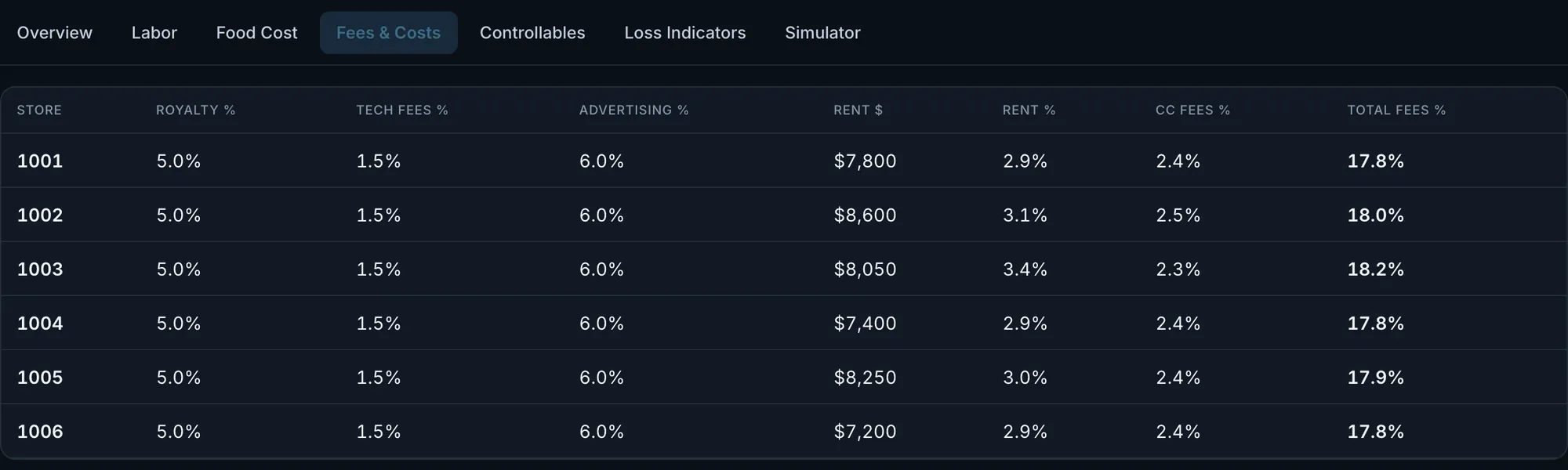
Fig. 3Store 1003: royalty 5.0%, technology fee 1.5%, advertising 6.0%, rent 3.4% and card fees 2.3% add to 18.2%.Actual OpsIntel screen · synthetic demo data Labor hours and controllable costs.
The Labor section shows each store’s P&L labor dollars and percent for the period beside its hours, overtime hours and labor cost per order to the nearest dollar. Controllables splits controllable from non-controllable costs for every store, with supplies, repairs, utilities, supervisory and corporate fees each in its own column as a percent of sales.
The period’s voids, late orders and large discounts.
Three cards for the period, each with a total and one line per store. Under them, a table totals discounts given without an offer code by store for four order channels: call center, phone, app and in-store. That table has its own year and period filter and opens on all years.
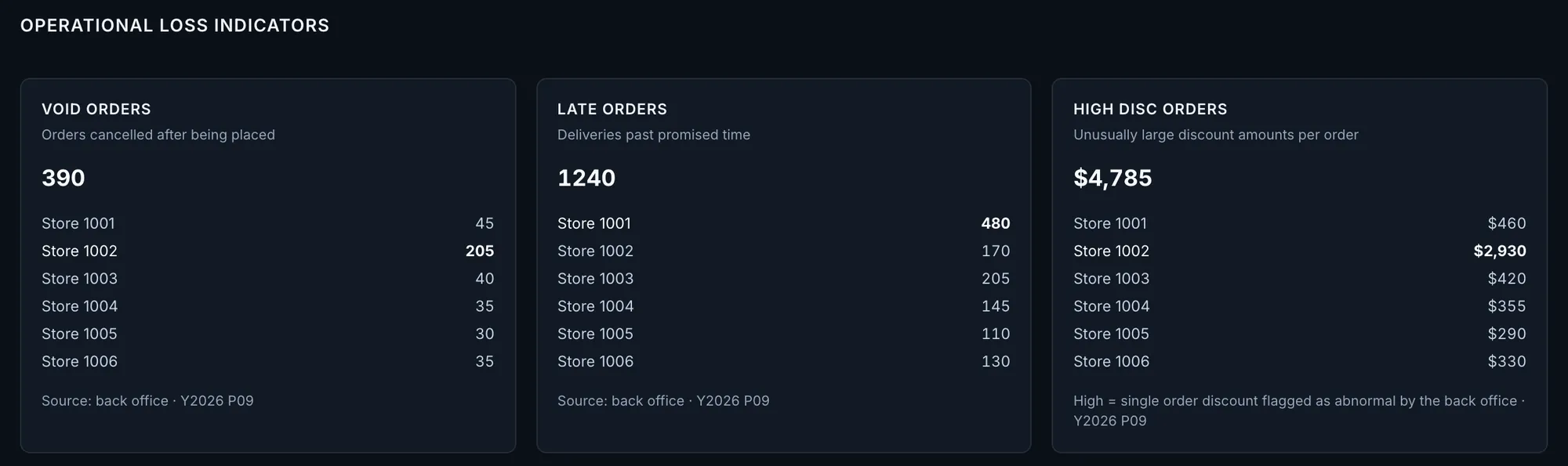
Fig. 4Store 1002 had 205 of the 390 voided orders and $2,930 of the $4,785 in large discounts.Actual OpsIntel screen · synthetic demo data Try a change before you commit to it.
Change orders, average ticket, discounts, labor or food cost for one store and see the new EBITDA beside the reported one, in dollars and as a percent. With nothing changed the two match to the dollar. The royalty rate, the fee rates and rent stay at the period’s actuals.
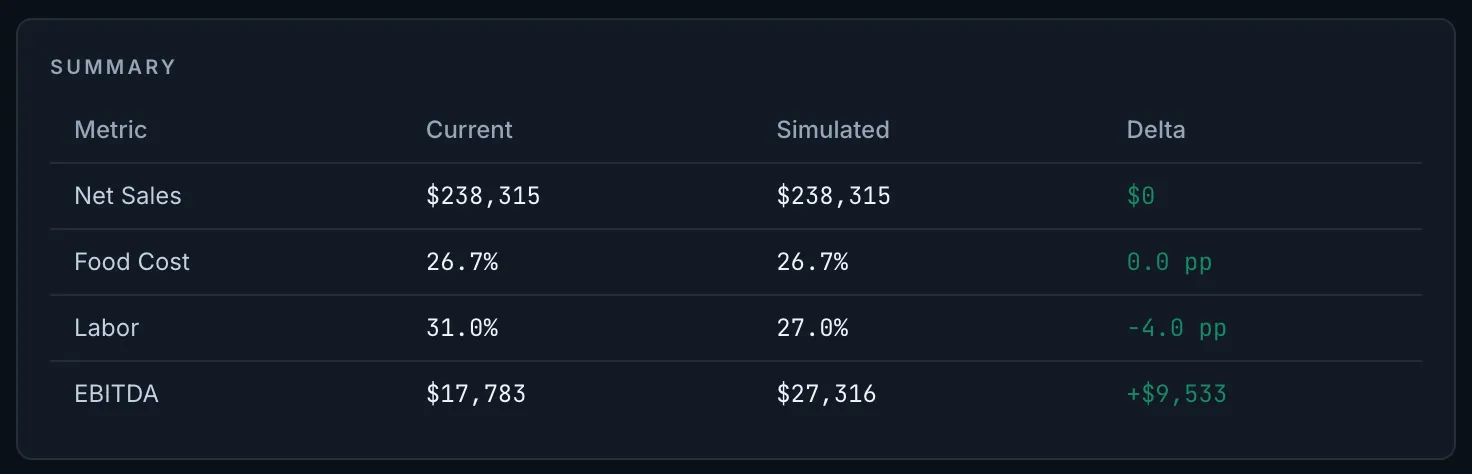
Fig. 5Harbor Glen with labor at 27.0% instead of 31.0%: simulated EBITDA of $27,316 beside the reported $17,783, a difference of $9,533. A what-if on reported results, not a forecast.Actual OpsIntel screen · synthetic demo data A period with no results yet.
The operating tab opens on the newest period that has results and names the later period that is not in yet. Pick a period with no results and the store tables show a dash for every figure, not $0 or 0%. The header says how many stores reported, and every average says how many stores it covers.
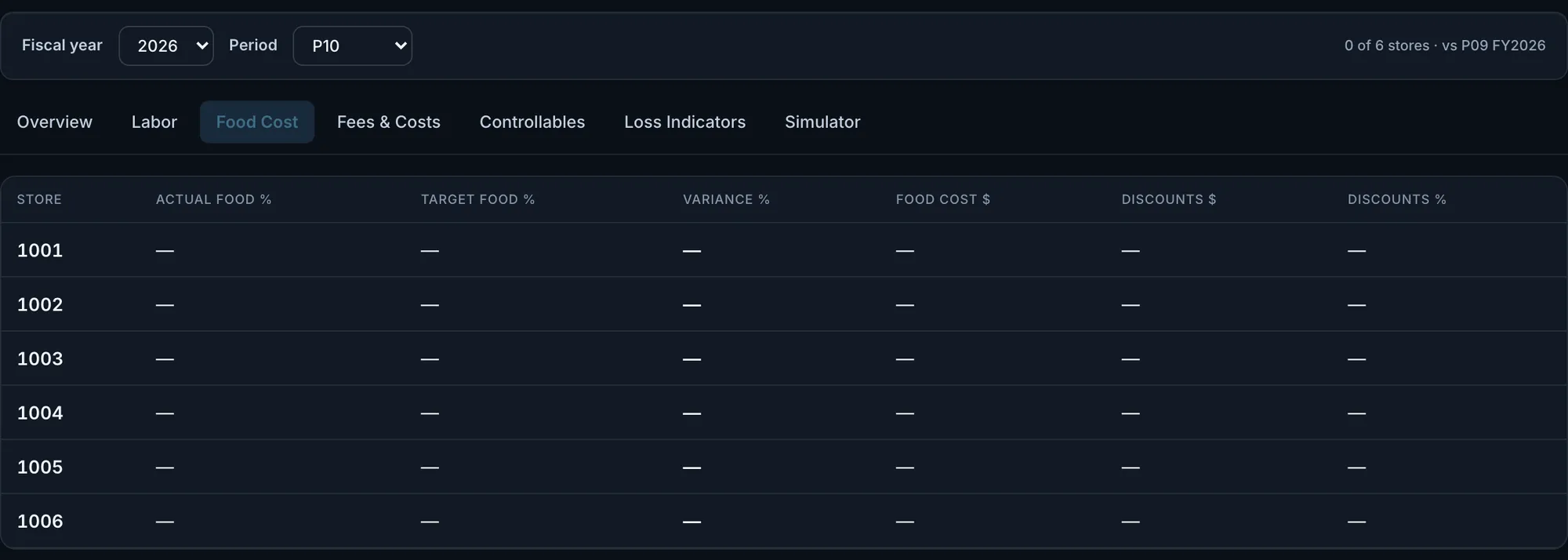
Fig. 6A period still open: every figure is a dash, and the header shows that no store has reported.Actual OpsIntel screen · synthetic demo data
What it covers
P&L at a glance.
The complete numbers: each store’s period side by side, with Xero and QuickBooks integration.
In P&L
- Every store side by side for a fiscal period or year
- Sales, EBITDA, labor and food cost against the correct operating targets
- Xero and QuickBooks, integrated read-only
- Fees and costs by store
- The period’s voids, late orders and large discounts
- A simulator to try a change for one store
Before a demo
Worth knowing first.
- The page has two views: the operating P&L by store, and your books from Xero or QuickBooks. The accounting integration is read-only.
- P&L labor is the labor line from your franchise P&L. It carries more than wages, so it reads higher than the wage-only labor on the daily screens. Both are measured against the one labor target an owner or admin sets for the store, and a store with no target says so.
- Labor dollars above target are modeled from the target you set. They are not a promise of savings.
- A period appears once your franchise reporting publishes it, which is some time after it ends. The year view of a year in progress covers the periods published so far and compares them with all of the prior year.
- The change above the table is against the period before, which can be a week longer or shorter. This tab has no same-period-last-year comparison.
- Costs are shown by category: labor, food, royalty and fees, rent, supplies, repairs, utilities and supervisory. They are not listed account by account, and this view has no balance sheet.
- OpsIntel does not prepare taxes and does not replace your accountant. It shows the period in the terms you run the stores by.
- The operating P&L is on every plan.
Related